This chapter walks you through creating and configuring Document Types in MySolution Recruitment (MSR).
Note: Use this guide to create a new Document Type in MySolution Recruitment (MSR) so you can generate or upload the right documents for the correct record (e.g., Candidate, Contact).
To find the type of Document Type, open the Document Types list:
|
Action |
|---|
|
|
|
|
Creating a New Document Type
To create a new Document Type, click the New button. A pop-up window appears.
Fill in the required fields:
|
Field |
Required |
Description |
|---|---|---|
|
Document Type Name |
Required |
The name shown throughout MSR. |
|
Unique Name for Setup |
Required |
Acts as an API name – use underscores instead of spaces (e.g. employment_agreement). |
|
Use for Object |
Required |
The MSR object this document is linked to (e.g. Contact, Candidate). |
|
Use for Record Types |
Optional |
Restrict this document type to specific record types. Leave blank to allow all record types under the chosen object. Use the API name (e.g. "Candidate"). |
|
Active |
Required |
Must be checked for the document type to be available to users. |
General Properties
After saving the basics, scroll to the General Properties section to configure generation and validity settings.
General settings
GDPR Data Group – Link this Document Type to a GDPR data group to support GDPR clean-up. (TODO: add a cross-reference link once the GDPR data group documentation page exists.)
Document Controller Group – Grouping value used to link multiple documents with the same grouping value to a Portal Document Controller.
Save to External Data Source – Determines where generated documents are stored: externally (SharePoint/Google Drive) or internally in Salesforce.
Translatable Document Type – Feature flag for enabling translations for this Document Type. (Behavior/details to be verified before finalizing.)
External Folder Path – Optional root folder path for storing generated documents. Supports variables #TEAM_CANDIDATE#, #TEAM#, #LABEL#.
-
Reads SharePoint_Folder_Path__c from the Document_Type2__c record.
-
If the path contains #TEAM_CANDIDATE# or #TEAM#:
-
Looks up the Team__c ID linked to the record (via Contact, Account, Placement, etc.).
-
Queries Team__c.Name and replaces both tokens with the team name.
-
Returns null if no team is found.
-
-
If the path contains #LABEL#:
-
Calls BusinessLabel.getLabelValue(recordId) and replaces the token.
-
Generation Options
Generate – Check this to allow the document to be generated as an editable Word file (recommendated to setup External Datasource with SharePoint or Google Drive).
Generate as PDF – Check this to generate the document as a PDF instead of Word.
Generate in Background – Generates the document without waiting for the user.
Generate In Language – Select whether the document is generated in the language of the Candidate or the Contact Person. Only applicable on Placement and Job Application objects
Show Selection Dialog – When enabled, the user is shown a selection dialog before the document is generated. Only applicable on certain objects.
Records only available on certain objects
Generate: Exclude Child Records – When enabled, child records are excluded from the generated document. Only applicable on certain objects.
Longlist – Enable this to limit the number of job fields included, optimised for longlist document generation. Only applicable on certain objects.
Send as PDF – Check this to send the generated document as a PDF to the recipient (separate from the Generate as PDF option, which only affects how it is stored).
Document Name Composition – Enter a template that defines how the generated document's file name is composed (e.g. including candidate name, date, or document type).
Use Conditional Text Blocks – Enable this to allow conditional text blocks to be used in this document type (see: Conditional Text Blocks page for configuration).
Validity Settings
Use these settings when a document has an expiry date (e.g. a passport or a certificate).
Valid From / Valid Until – Choose whether to show and/or require validity start and end dates when uploading.
Validity Warning Days – Enter a number of days before expiry when a workflow reminder tile should appear.
Standard Validity Period – Set a default validity duration (e.g. 1 year) so users do not need to enter it manually each time.
Standard Validity Period Qty - Enter the number of years a document type is valid.
Document No – Show and optionally require a document number field (useful for passports, ID cards, etc.).
Approval Settings
The Approval section lets you configure how documents are approved.
Approval (checkbox) – Enables manual approval.
Digital Signing Method – Select CM-Sign or MySign to send an e-mail approval request to designated approvers. Requires CM-Sign or MySign integration.
Form Capabilities (CM Sign) (checkbox) – Enable this when the document requires a form with multiple input elements such as text fields, checkboxes, or radio buttons.
Alternative E-mail Title (CM Sign) – Enter a custom subject line for the CM Sign invitation e-mail sent to approvers. Leave blank to use the default subject.
Select the appropriate value to match the type of integration the customer is using.
In the Approver 1, 2, and 3 fields, enter the API field name (not the label) of a field on the selected Use for Object that stores a User or Contact lookup/ID. This value is used to pre-populate approvers/signers when a document is sent for approval or signature. For example, a Placement may have separate lookup fields for Candidate and Contact Person; use the API name of the relevant lookup (e.g., the Candidate or Contact Person field) depending on who should sign.
Portal Settings
The Portal section controls what document-related actions are available to users working through the MSR portal.
Portal: Allow Creation – Users can create/upload this document type via the portal.
Portal: Allow Deletion – Users can delete documents of this type via the portal.
Portal: Allow Modification – Users can edit document records of this type via the portal.
Portal: Document Controller Group - Grouping value to link multiple documents with the same grouping value to a Portal Document Controller.
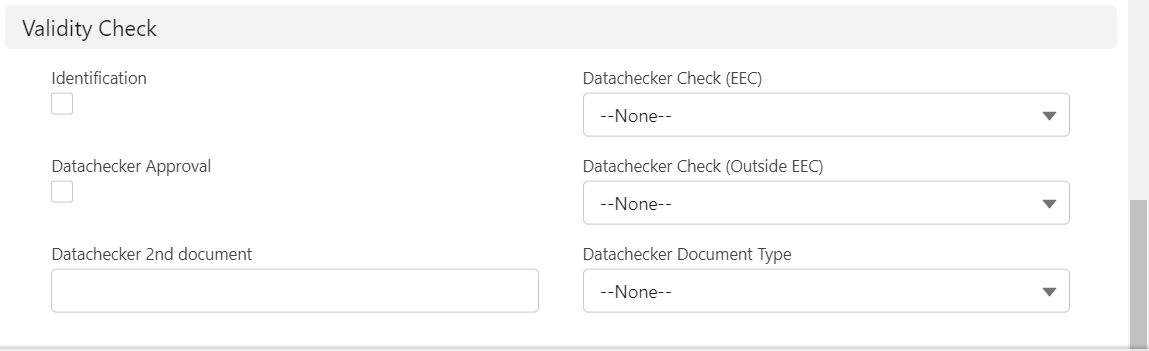
Identification (Datachecker)
This section is only relevant if your organisation uses the Datachecker integration to verify identification documents automatically. Refer to LINK O NEW PAGE DATACHECKER INTEGRATION