
Once your Word template is ready, connect it to the Document Type in MSR so it can be used for document generation.
Steps
Open the Document Type record in MSR.
Make sure the Generate checkbox is ticked and the object matches the one used for your XML file.
Click the Related tab on the Document Type record.
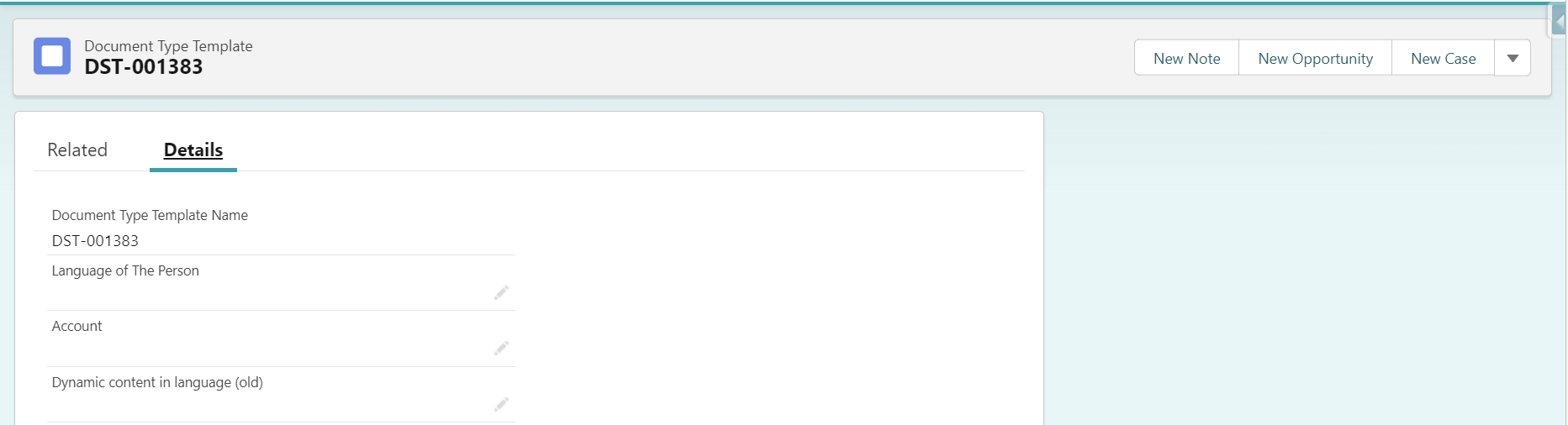
Under Document Type Templates, click New
Leave all fields empty except Document Type (which is pre-filled). Click Save
On the new Document Type Template record, click the Related tab.
Under Notes & Attachments, click Upload Files and upload your Word file.
|
Field/Section |
Description/Guidance |
|---|---|
|
Account |
Create an account-specific version for a certain account (style and content). |
|
Language of the Person |
Linked to language used in the system. Make sure there is always a fall-back template set without a specific language. |
|
Language for Dynamic Content |
Specify how dynamic content should adapt to the user's language preferences (if applicable). |
|
Cultural Settings |
New section: format currency amounts; decimal and thousand separator. |

Note
|
The uploaded Word file is now the master template. When a user generates a document, MSR opens this file and fills in all XML tags with data from the current record. |
Additional Note: Multilanguage Support
Country and state picklists default to Dutch. To display countries in the correct language in your template:
Mark the template language in e of the template in the document type template.
When adding tags (including those inside a repeater), use the XML tag for OtherCountryCode instead of OtherCountry.